
A Multi is a folder for your other choices. Group related choices under one entry in the QuickAdd picker, then open it to see what’s inside - handy once your picker grows past a handful of items. In the settings list, a Multi is the entry you can fold and unfold. Create one with New folder in Settings → QuickAdd.
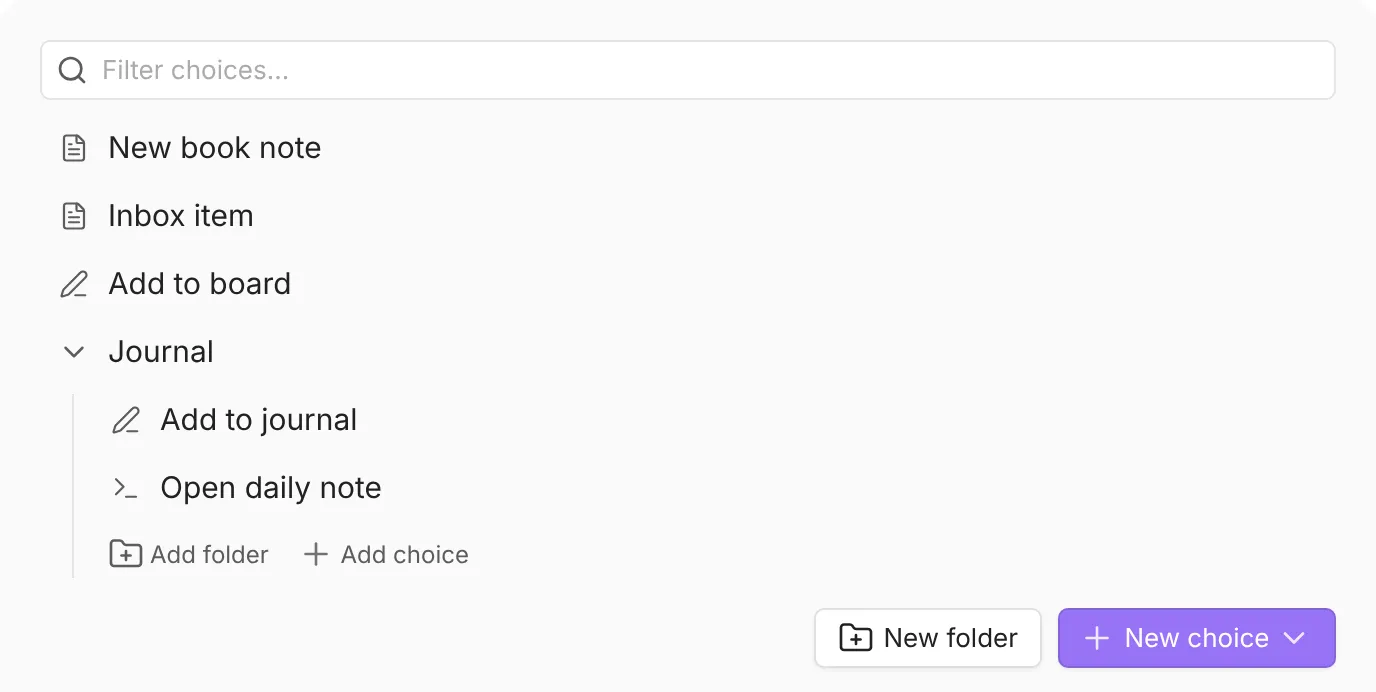
Put choices inside a multi
Section titled “Put choices inside a multi”To create a new choice inside a multi, unfold it and click its Add choice link. To move an existing choice in, drag it in. Make sure the multi is unfolded (as in the screenshot above), then grab the drag handle (⠿) at the right end of the choice’s row - it appears when you hover the row - and drop the choice onto the rows under the multi. When it works, the choice appears indented under the multi.
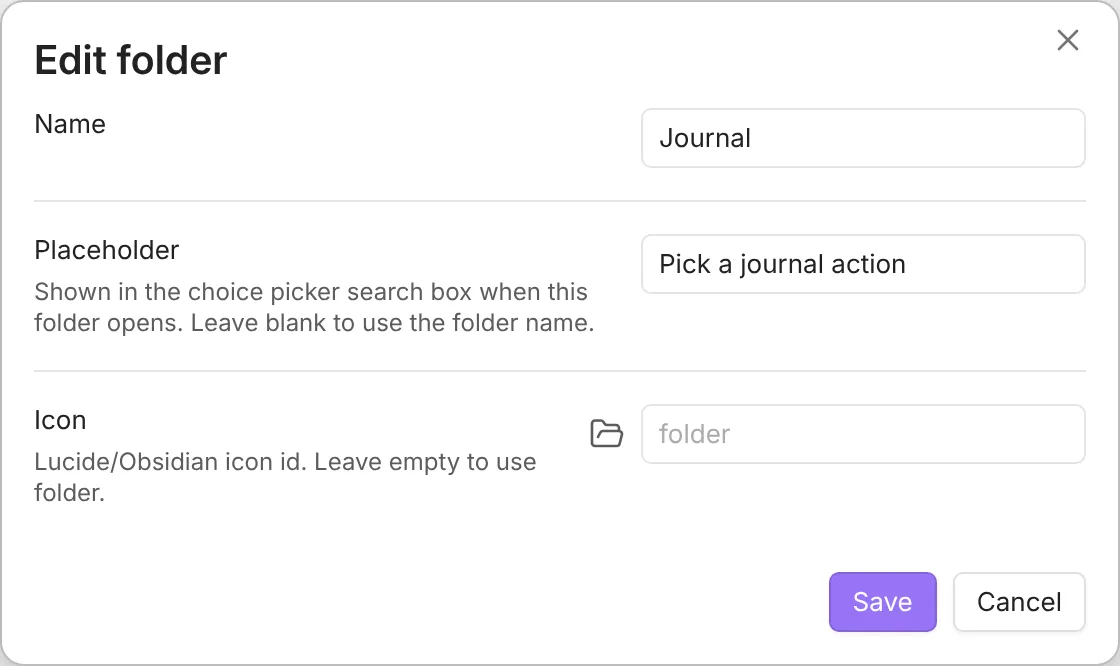
Set the search box hint: Placeholder text
Section titled “Set the search box hint: Placeholder text”Each multi can show its own hint in the choice picker’s search box when you open it - useful for labeling a complex menu or a grouped workflow. Leave it empty and the multi’s name is used instead.
Because search reaches everything nested under the multi, word the hint for the whole group, not just the top level.
To set it, click the gear on the multi’s row to open Edit folder, fill in Placeholder, and click Save.
Change a choice’s icon
Section titled “Change a choice’s icon”Choices in the QuickAdd picker use the same Obsidian/Lucide icons as registered QuickAdd commands. Every choice type has a default icon, and you can override it from the choice’s Icon setting. Icons are monochrome and take on your active Obsidian theme color.
Search across nested choices
Section titled “Search across nested choices”Typing in the choice picker searches every choice nested inside the current
level’s multis, not just the level you are looking at. A nested match shows its
folder path (for example Work / Meetings) beneath the choice name. This also
applies to the root picker opened by the QuickAdd: Run command or the ribbon
icon.
Good to know:
- Browsing is unchanged: with an empty search box, you still see one level at a time.
- The search also matches the folder path, so
work meetingfindsNew meetinginsideWork / Meetings. - Selecting a nested multi from the results opens it. Its ← Back entry returns to the level you searched from, skipping any levels in between.
- Searching from inside a multi only covers that multi’s sub-choices. Go back (or open the root picker) to search more broadly.
To limit search to the level you have open, turn off Settings → QuickAdd → Search nested choices.